
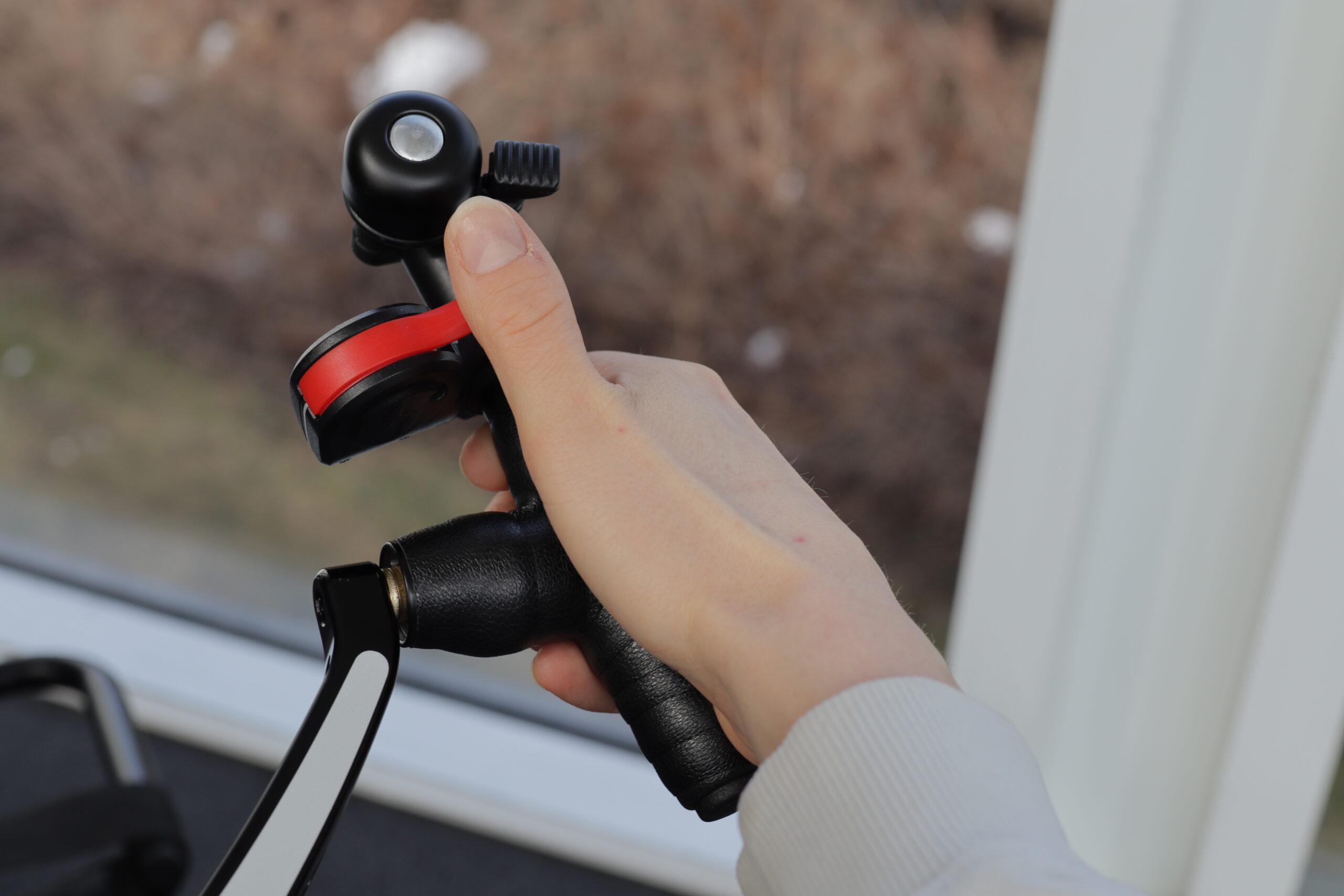
Most SmartBrake controllers delivered as part of a complete system are already paired before shipping.
This means you usually do NOT need to pair the controller as the first step if something is not working. In many cases, the problem is instead that
- the controller has not been woken up
- the battery is low or empty
- the controller is out of range
- the controller or the brake unit needs a simple reset
When should you pair a controller?
You normally only need to pair a controller if:
- it was delivered separately
- support has asked you to pair it again
- you have tried the usual checks and the controller still does not connect
Before you try to pair again
Try this first:
- Check the light signals. If SmartBrake shows a green blinding light,it means the system does not have active signal contact.
- Wake the controller. Activate the controller once after the brake unit has been turned on.
- Check the battery in the controller.If fail-safe does not release, you should check that the controller has battery power.
- Check the administrator controller. SmartBrake must always have contact with an awake administrator controller within range in order to operate.
- Reset the brake unit. Press and hold the activation button until the brake light has lit up 3 times.This takes about 30 seconds.
- Try pairing again. If this still does not help, you can try pairing the controller again.
How to pair a controller
- Turn off the SmartBrake unit. Make sure the SmartBrake unit is turned off before entering pairing mode.
- Enter pairing mode. Press and hold the button on the unit for about 10 seconds,until the red light stays solid. A solid red light means the SmartBrake unit is in pairing mode.
- Activate the controller
Use the controller you want to pair:
- pull the Brake Lever Slim
- pull the Thunb Brake Lever
- press “BRAKE” on the Hand Controller
If pairing is successful, the red light on the unit will turn off.
[VIDEO] Show the full pairing process from powered-off unit to successful pairing.
[PHOTO] Solid red light in pairing mode.
Important before pairing
If an old spare controller is still nearby, especially an old administrator controller, the battery should be removed before pairing.
This reduces the risk of the wrong controller being connected.
[PHOTO] Example of a spare controller that should be kept away during pairing.
Step 4: Wake the controller after pairing
After pairing is complete and the SmartBrake unit has been turned on again, the controller must be woken up before the system can be used normally.
If the controller is not woken up, SmartBrake will go into fail-safe and show a green blinding light,this means the braking system does not have active signal contact.
This does not necessarily mean that pairing has failed. The controller may be correctly paired, but still not woken up after startup.
Important: The controller can only be woken up when the SmartBrake unit is turned on.
How to wake the controller
- Turn on the SmartBrake unit
- Activate the controller once
- Check that the connection is established and that fail-safe is released
[VIDEO] Show startup after pairing, green blinking light, and then waking the controller.
[PHOTO] Green blinking light after pairing.
If SmartBrake still shows signal loss after waking
If SmartBrake still shows signal loss after the controller has been woken up, you should check:
- whether the administrator controller is awake
- whether the administrator controller is within range
- whether the controller that was paired is an administrator or assistant controller
SmartBrake must always have contact with an awake administrator controller SmartBrake must always have contact with an awake administrator controller in order to operate.
SmartBrake must always have contact with an awake administrator controller in order to operate.
[TEXT ONLY] It may later be useful to add a simple figure here showing the difference between administrator and assistant.
Connect a remote
Fail-Safe after pairing. Wake up the controller


